Advanced
The Advanced page (also called TilliT Insights) is your main control center. From here you can run TilliT's AI pipeline on your products, manage which products get automatically verified on a schedule, and filter or search your catalog.
How to get here: Shopify Admin → Apps → TILLIT AI Staging → Advanced
Page overview
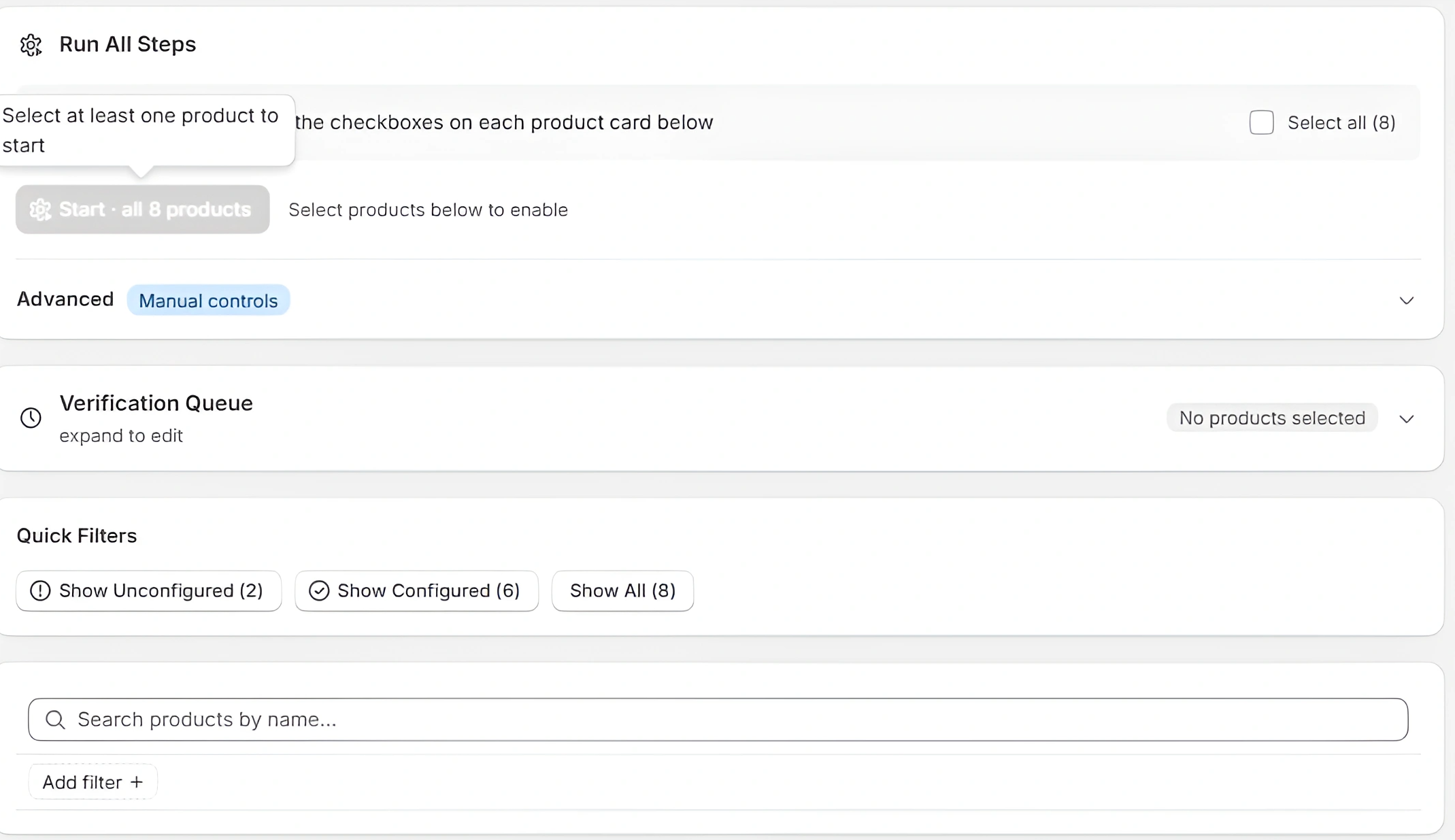
The page has four main sections from top to bottom:
- Run All Steps — run the full AI pipeline on selected products
- Verification Queue — choose which products auto-verify on a schedule
- Quick Filters — filter your product list
- Product Cards — your full product catalog with per-product actions
1. Run All Steps
This section lets you trigger TilliT's full AI pipeline on one or more products.
How to run
-
Scroll down to the product cards
-
Tick the checkbox on each product you want to process
-
Scroll back to the top — the panel updates to show your selection
-
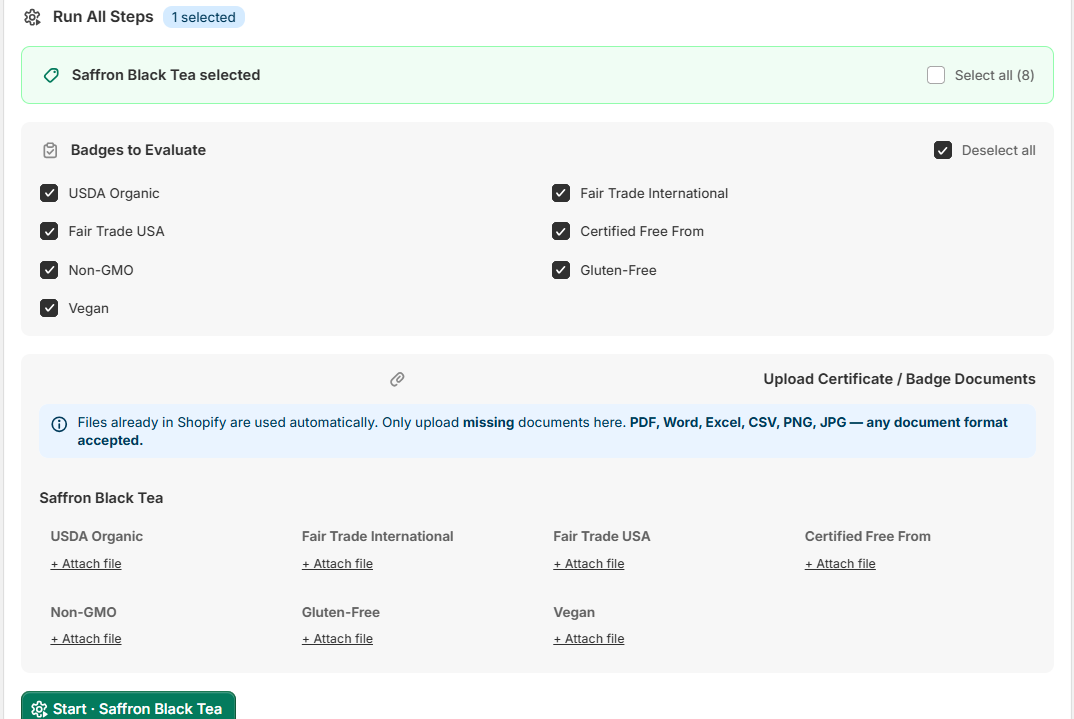
Choose which Badges to Evaluate — all 7 are selected by default, uncheck the ones you don't need:
- USDA Organic
- Fair Trade International
- Fair Trade USA
- Certified Free From
- Non-GMO
- Gluten-Free
- Vegan
-
Under Upload Certificate / Badge Documents, click + Attach file next to each badge you need to provide a certificate for
Files already uploaded in your Shopify store are used automatically. You only need to attach a file here if a certificate is missing from Shopify.
Accepted formats: PDF, Word, Excel, CSV, PNG, JPG — any document format is accepted.
- Click the green Start · [Product Name] button
Progress panel
Once you click Start, a progress panel appears showing 4 steps running in sequence:
| Step | What it does |
|---|---|
| Select Products | Confirms which products are queued |
| Map My Supply Chains | AI generates supply chain configurations for your products |
| Fill Data for My Products | Fills in supply chain data |
| Evaluate My Badges | Verifies badge claims against your certificates |
Each step shows one of these statuses:
| Status | Meaning |
|---|---|
| Running | Currently in progress |
| Done | Completed successfully |
| Pending | Waiting for a previous step to finish |
| Skipped | Step was skipped (see note below) |
"Evaluate My Badges" shows Skipped? This is normal — it means no certificate files were attached, so there was nothing to verify. It is not an error. To run badge evaluation, attach certificate files in step 5 above.
When all steps are complete, the panel shows "All steps complete" with the total time taken.
Advanced — Manual controls

Click Advanced / Manual controls to expand a sub-section that lets you run each pipeline step individually. Use this when you need to re-run a specific step or troubleshoot.
| Button | What it runs |
|---|---|
| Configuration | Re-runs the supply chain configuration step only |
| Data Entry | Re-runs the data entry step only |
| Insights | Re-runs the insights and analytics step only |
2. Verification Queue
The Verification Queue lets you schedule which products TilliT automatically re-verifies on each backend run — without you needing to trigger it manually each time.
How to set it up
- Click on Verification Queue to expand it
- Tick the checkbox next to each product you want included in automatic runs
- Use Select all (8) to add all products at once
- Click Save Queue
Products in the Verification Queue are verified automatically on TilliT's scheduled runs. You don't need to come back and run them manually each time.
If no products are ticked, the Save Queue button shows: "No products queued — select products above and save."
3. Quick Filters
Use these filters to narrow down what appears in the product grid below.
| Filter | Shows |
|---|---|
| Show Unconfigured (2) | Products not yet set up with TilliT |
| Show Configured (6) | Products already configured and active |
| Show All (8) | All products in your catalog |
You can also search by product name or click Add filter + to apply additional filters.
4. Product Cards
Your products are displayed as cards in a two-column grid. What you see on each card depends on whether the product is configured or not.
Configured products
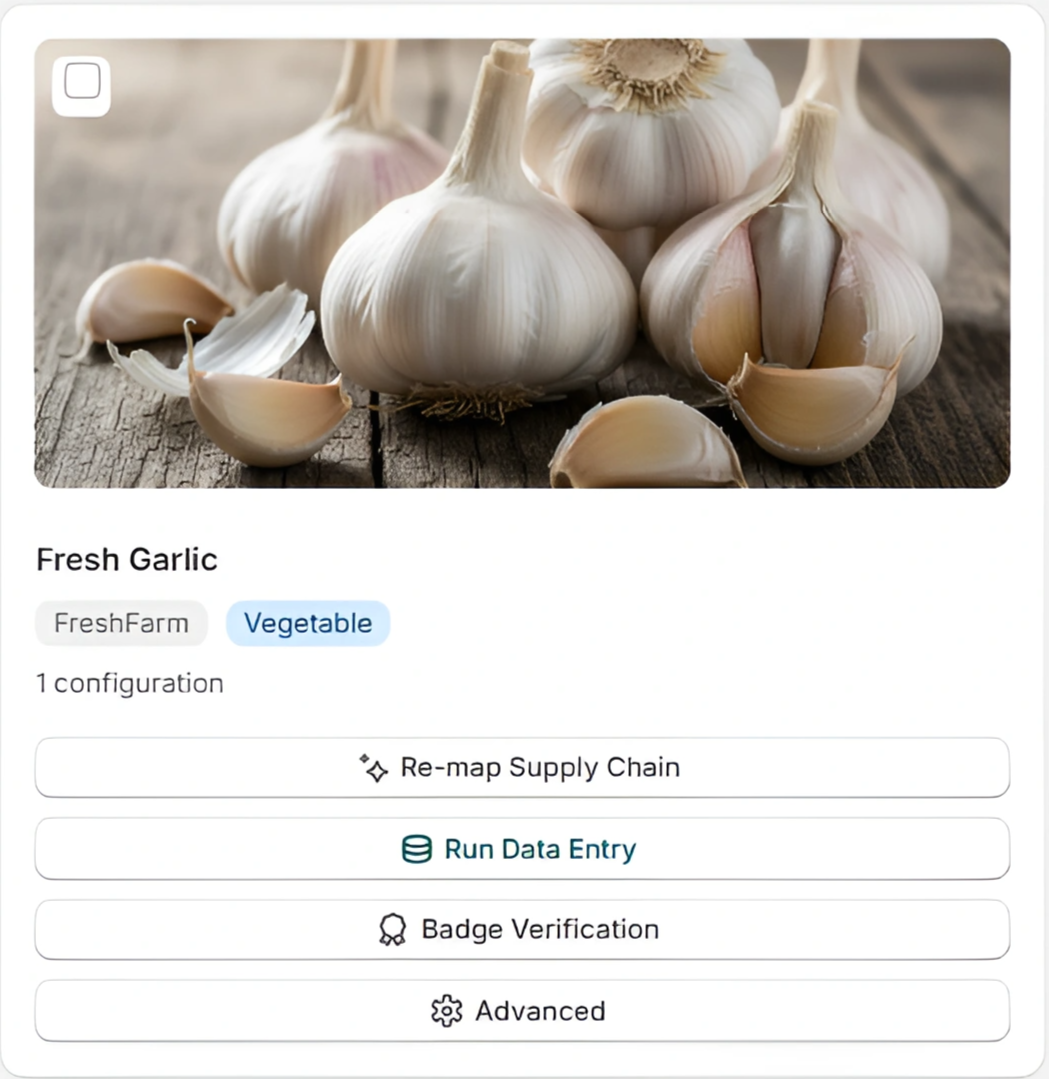
Products that have been set up with TilliT show four action buttons:
| Button | What it does |
|---|---|
| Re-map Supply Chain | Re-runs supply chain mapping for this product |
| Run Data Entry | Re-runs the data entry step for this product |
| Badge Verification | Opens the badge verification flow for this product |
| Advanced | Opens advanced settings for this specific product |
Run Data Entry includes auto-fill options — Auto-Fill Configuration and Auto-Fill All — which automatically populate traceability data fields using your Shopify product data.
Badge Verification opens a step-by-step flow: select which badge to verify → select a region → click Create Case. The system then processes the verification and returns a result (Verified, Pending, or Failed).
Below the product name you will also see:
- Shop name — the Shopify store this product belongs to (e.g. "tillit-test-shop3"), shown in small grey text
- Category tags — colored pill badges showing the product's categories (e.g. FreshFarm, Vegetable, Fruit)
- Configuration count — e.g. "2 configurations" showing how many supply chain configurations exist for this product
Unconfigured products
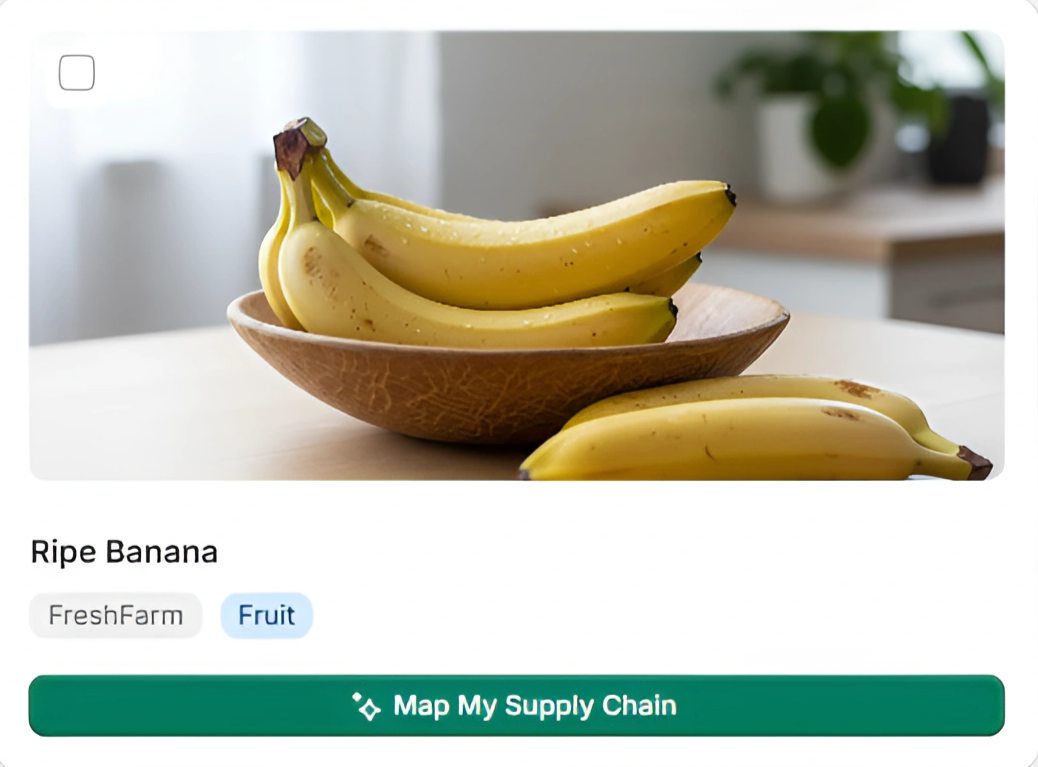
Products not yet set up show a single green button:
→ Map My Supply Chain — click this to start the TilliT setup process for that product.
Use Show Unconfigured in Quick Filters to quickly find products that still need to be set up.
Was this page helpful?